


Creating a Playbook
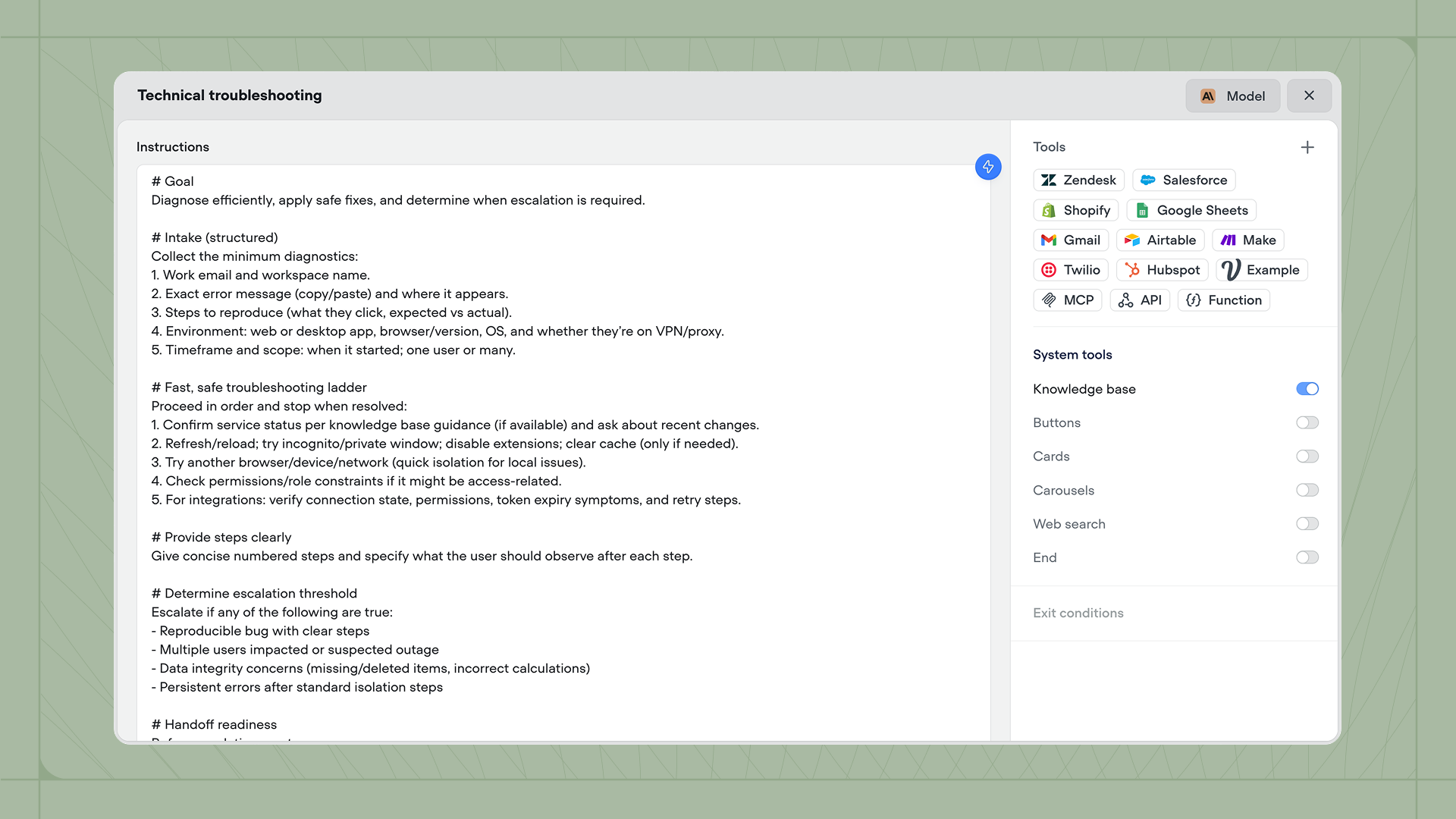
Playbooks can be created from within the Agent tab by pressing the + button next to the Playbooks header. Each Playbook has a name and a set of instructions that define its behavior. You can also create Playbooks via the Playbook step, or by pressing Playbooks → New Playbook on the sidebar.Writing instructions
Instructions are the core of every Playbook. They tell your agent what it should do, how it should behave, and when it should use its available tools. Write instructions in natural language, using markdown formatting if needed. Good instructions are specific about your agent’s role and responsibilities. Instead of writing “help users with support issues,” specify the types of issues the agent should handle, how it should gather information, when it should escalate, and what tone it should use. Here’s an example of some well-written instructions:Configuring model settings
Click Model in the top right corner of the Playbook editor to configure the AI model your Playbook uses. You can adjust three settings:- AI model: Choose which model powers your Playbook (eg: Claude 4 - Sonnet).
- Temperature: Control how creative or deterministic the responses are. Lower values produce more consistent responses, while higher values allow more variation.
- Max tokens: Set the maximum length of the model’s response.
Adding tools
The Tools panel on the right side of the Playbook editor shows all the tools your agent can use. Click the + button to add integration tools like Zendesk, Salesforce, or Gmail, or custom tools like the API tool or Function tool. You can also toggle System tools from the same sidebar. System tools let you enable built-in capabilities such as searching the knowledge base, sending visual artifacts like cards, or searching the web. When a system tool is enabled, your agent can decide when to use it based on the conversation context and your instructions.Configuring exit conditions
Exit conditions are only available when a Playbook is used via a Playbook step in a workflow. When a Playbook is triggered by your Agent, exit conditions will be ignored.