


For agentic carousel generation where cards are dynamically created based on conversation context, use the carousel system tool inside a Playbook instead of the Carousel step.
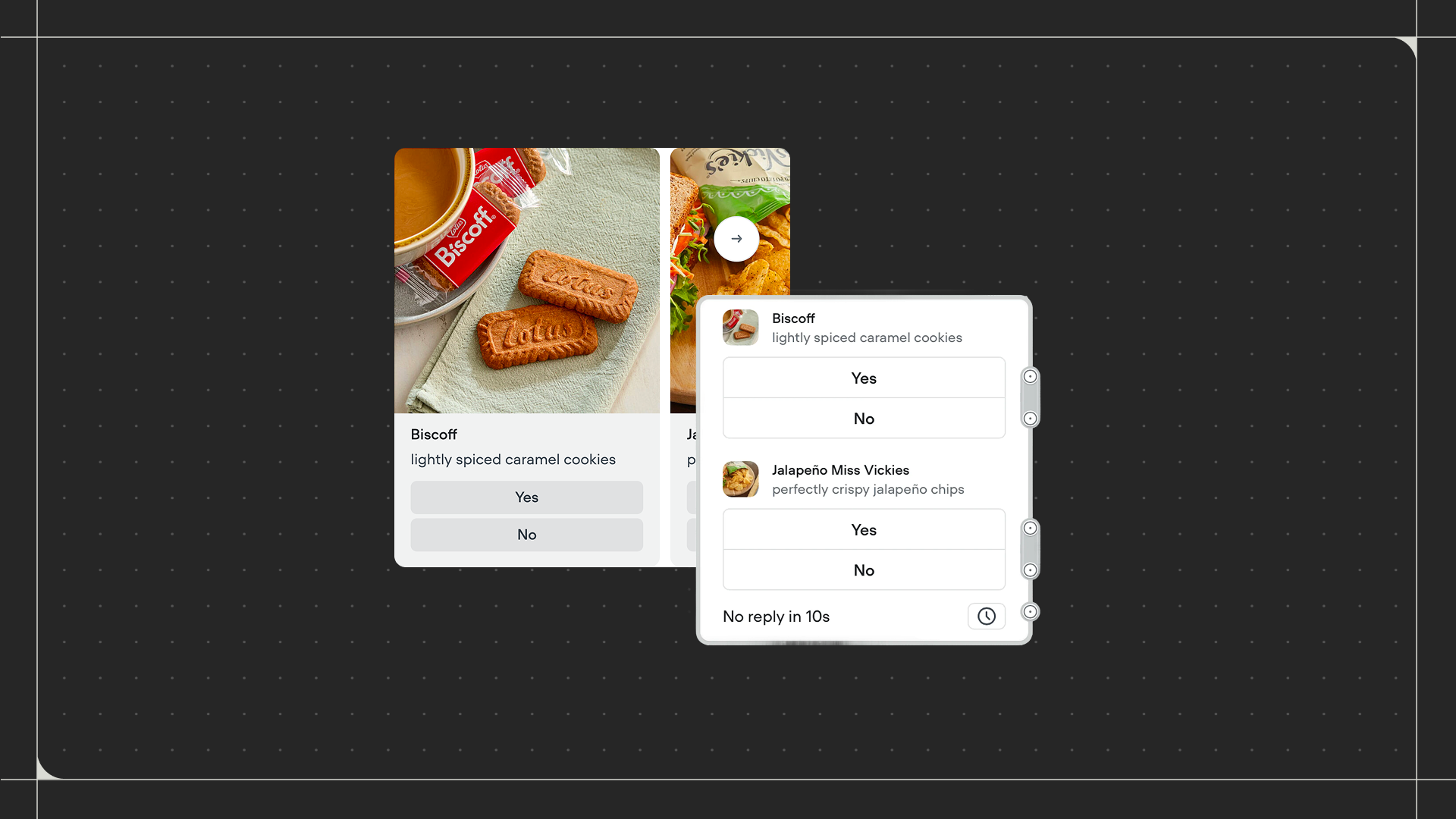
Using the Carousel step
Drag the Carousel step onto the canvas and connect it to the step before it. Click on the step to add and configure your cards. Click the + icon next to Cards to add a new card to your carousel. Configure each card’s image, title, description, and buttons. You can add multiple cards to create a scrollable gallery.Configuration
Each card in the carousel can be configured with:- Image: Upload an image file or provide a URL. Supported formats include .png, .jpg, and .gif.
- Card title: Enter the heading text that appears on the card. You can use variables by wrapping them in curly braces (eg:
{product_name}). - Card description: Enter descriptive text that appears below the title. You can use variables and basic formatting.
- Buttons: Add clickable buttons to each card. Each button creates a connection point that you can connect to other steps in your workflow. Optionally add URLs to buttons. Carousel buttons persist after the user clicks them, so users can return to the carousel and make another selection.
Additional settings
- No match: When enabled, handles situations where the user’s response doesn’t match any button label. Your agent can send a message or follow a path in situations where the user’s response is invalid.
- No reply: When enabled, handles situations where the user doesn’t respond within a specified time. Your agent can either send messages periodically or follow a path after the specified time.